


1) Go to your Blomire Client Area and login
Enter your email address and password to login to the Blomire Client Area.
2) Blomire Client Area Dashboard
Click on the Services tab to access your hosting packages.

2) Click on the Hosting Package that you want to install WordPress on

3) Click on "Log in to cPanel" in the left side Actions menu

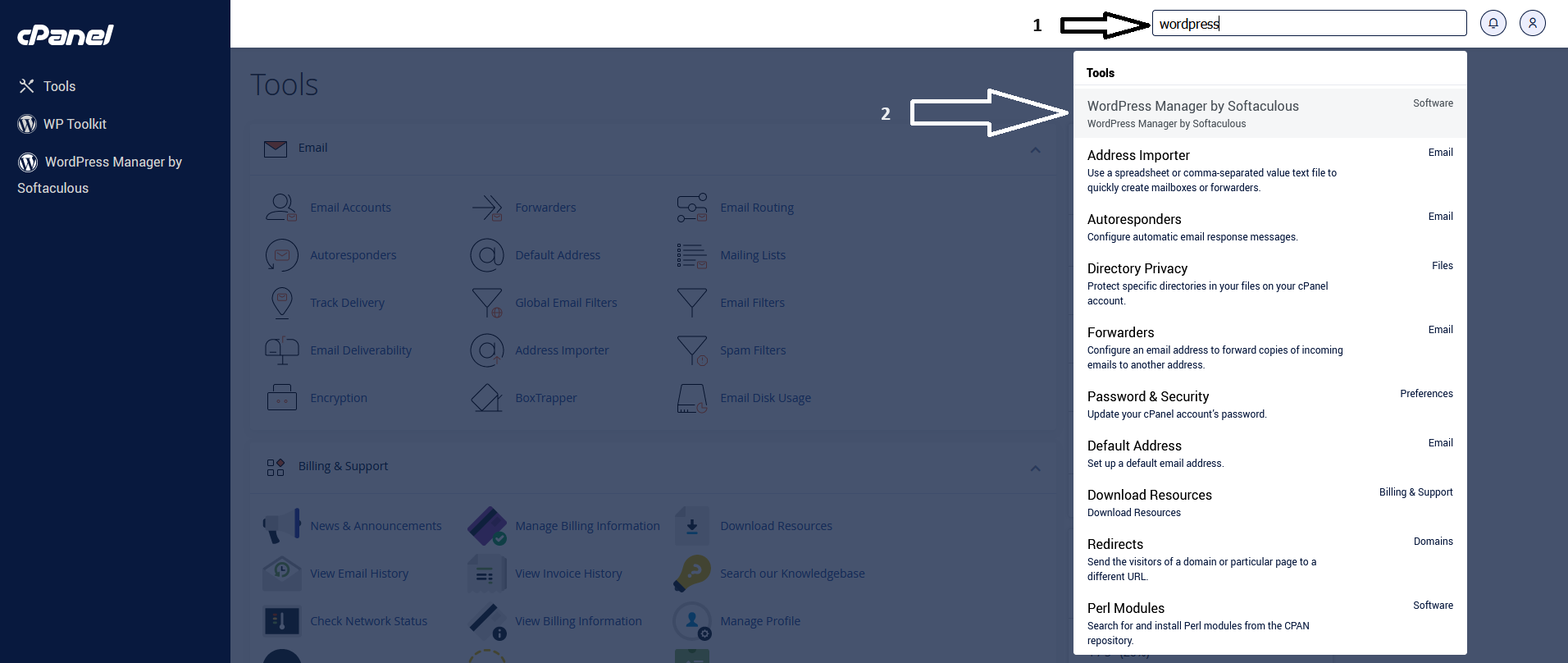
4) cPanel will be opened on a new tab, search for WordPress on the top search bar and click on "WordPress Manager by Softaculous"
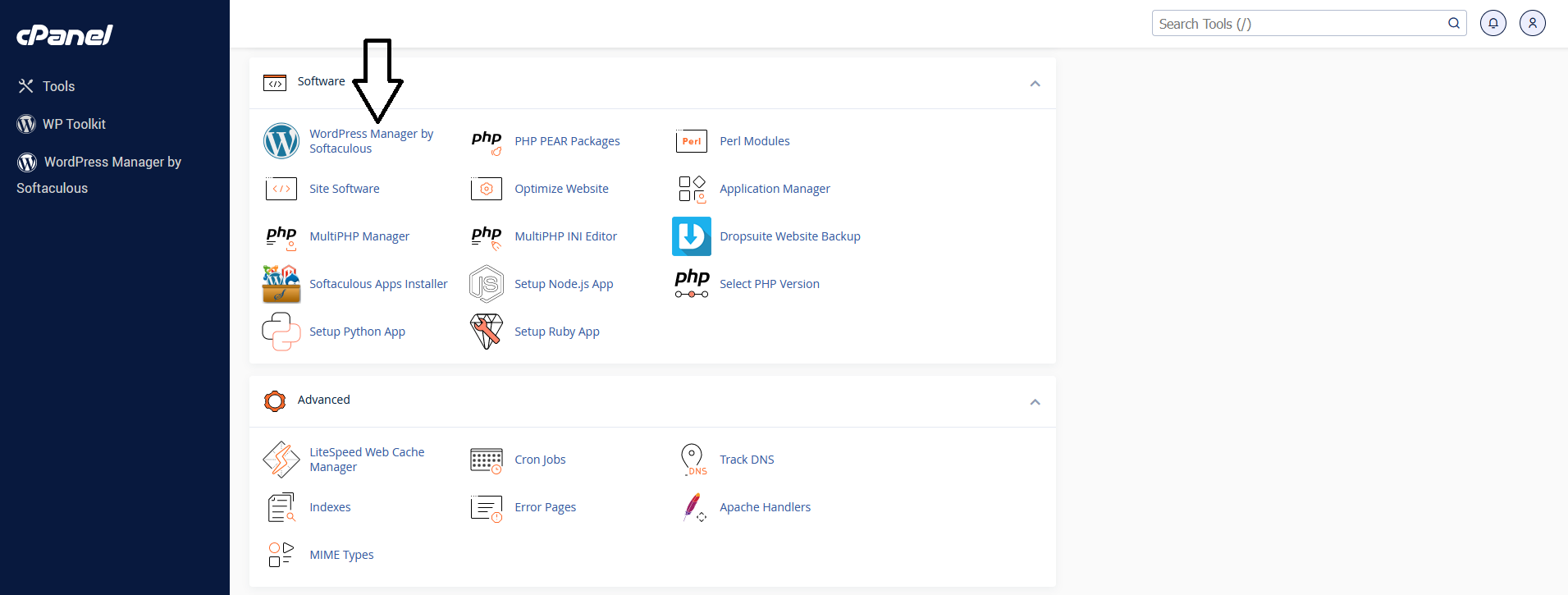
or scroll down until you find the Software tab
5) A WordPress Management window will appear
Click on the blue Install button to start a WordPress new installation or on the Install a new copy link.

6) Edit the Site Settings (website name & website description) and create an Admin Account (admin username, admin password & admin email)
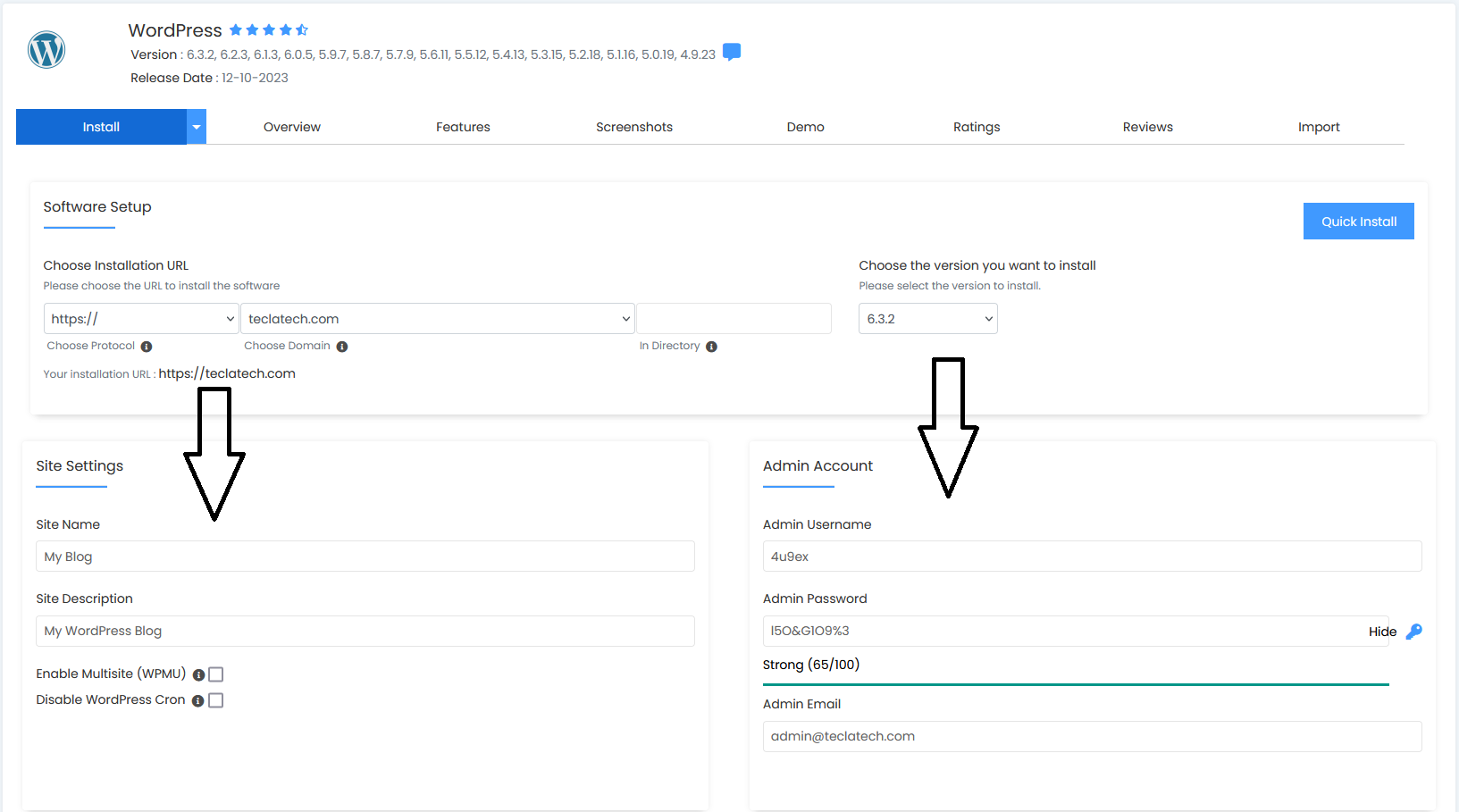
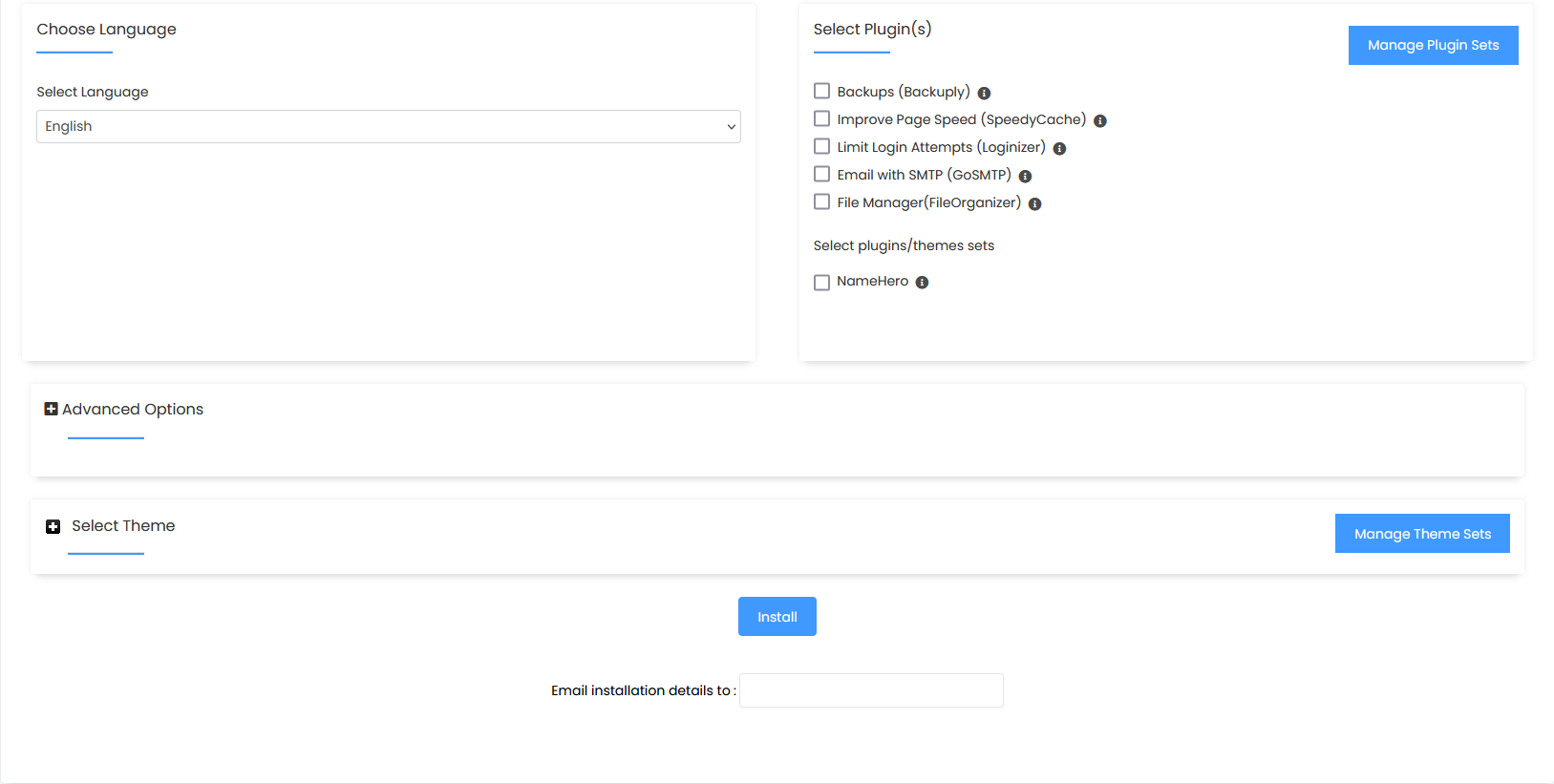
other settings are available, like website language, plugin sets and some other advanced options, after you finish setting up the installation click on the blue Install button.
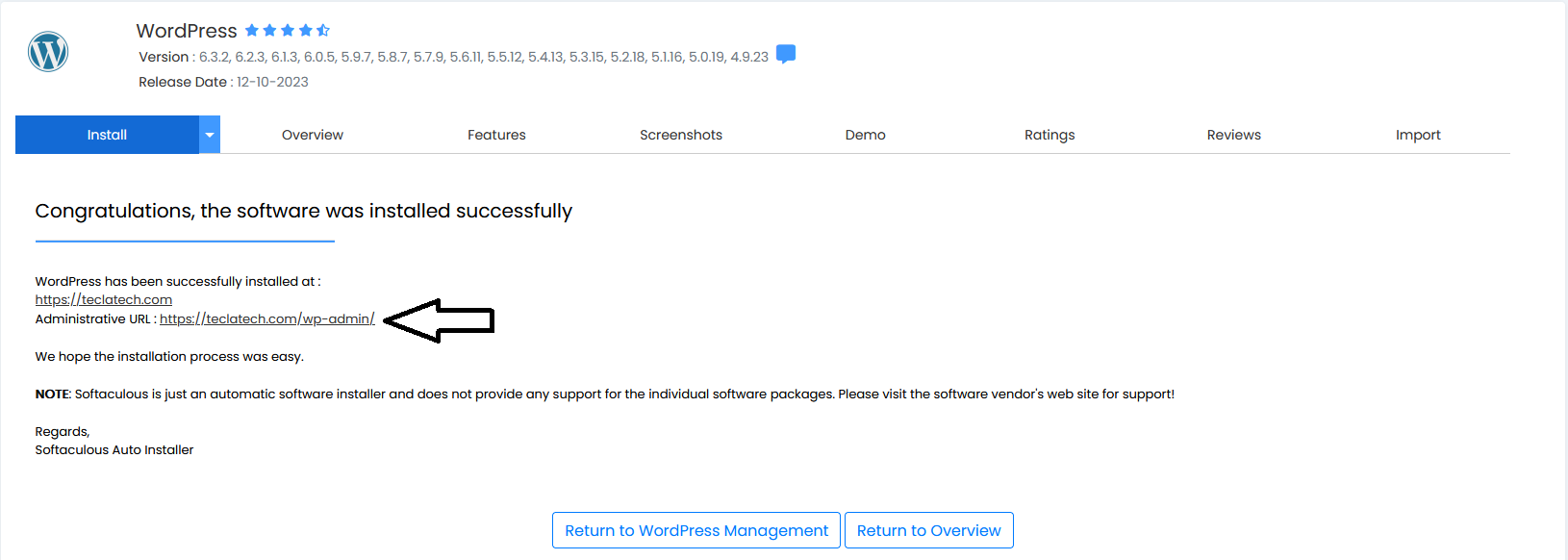
WordPress has been installed by now. Click on the Administrative URL to manage your WordPress website.
The Blomire Team

